

Last updated: May 15, 2026
The canonical SSH-piped tcpdump recipe every Stack Overflow answer gives you has a specific failure mode on quiet links: the capture freezes, then bursts, then freezes again, and the network is fine — the culprit is a libpcap write buffer that one flag (-U) defeats, plus two failure modes most write-ups skip. For wireshark vs tcpdump remote capture: run ssh host "tcpdump -U -s0 -w - -i eth0 not port 22" | wireshark -k -i - when the link can keep up; switch to capture-then-copy (tcpdump writes a file, scp pulls it later) when it cannot, or run termshark on the remote and move only keystrokes. Three things pick the winner: link budget, privilege model, and live-view need.
- The
-Uflag is required for live streaming — without it libpcap holds writes in a userspace buffer before flushing, so Wireshark looks frozen on quiet links. See the tcpdump(1) manual page for the exact wording. not port 22(or your real SSH port) must sit in the BPF filter or the capture recursively records its own transport.- On slow SSH links, reduce snaplen to capture only the headers you need (e.g. 96 bytes for L2+L3+L4, 256 bytes for TLS ClientHello) to stop “packets dropped by kernel”.
- Wireshark’s GUI “Remote Interfaces” dialog (rpcap) is primarily a Windows workflow — rpcapd ships in the Windows installer and is not part of standard Linux distributions of Wireshark. On Linux the well-supported paths are SSH-piped tcpdump/dumpcap or the Extcap
sshdumpinterface; building rpcapd from source is possible but uncommon. - termshark gives you display filters and full packet detail trees with zero local GUI dependency, which matters when SSH is your only channel out of the host.
The 70-word answer and when each tool wins
Three tools, three jobs. Use the tcpdump-piped-into-Wireshark pattern for live triage on a fast link where you want the protocol decoder GUI now. Use capture-then-copy (tcpdump writes to a file, scp pulls it later) whenever the link is jittery, slow, or you do not actually need real-time inspection. Use termshark when SSH is the only channel you have into the host and you still want display filters and packet detail trees.
Everything else is a variation on those three. sshdump, the Extcap interface bundled with Wireshark, is option one with a friendlier wrapper around the SSH invocation. dumpcap-over-SSH is option one with a non-root privilege model. The decision is rarely “Wireshark or tcpdump” in any meaningful sense, because every remote capture uses tcpdump or dumpcap on the wire end and reads the pcap somewhere else. The question is where the pcap is read.
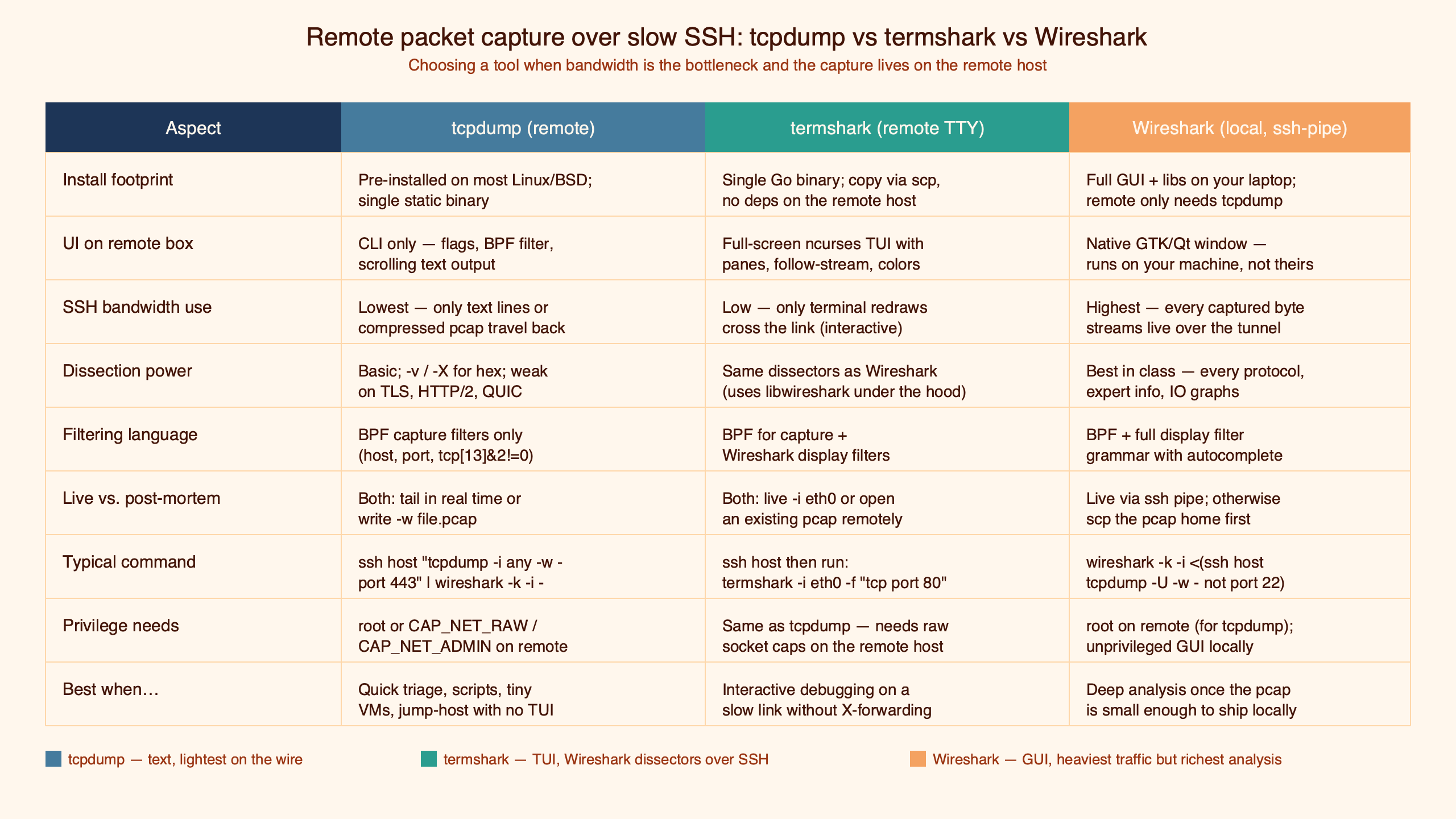
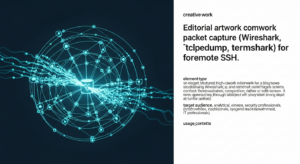
Purpose-built diagram for this article — Wireshark vs tcpdump vs termshark for remote packet capture over slow SSH.
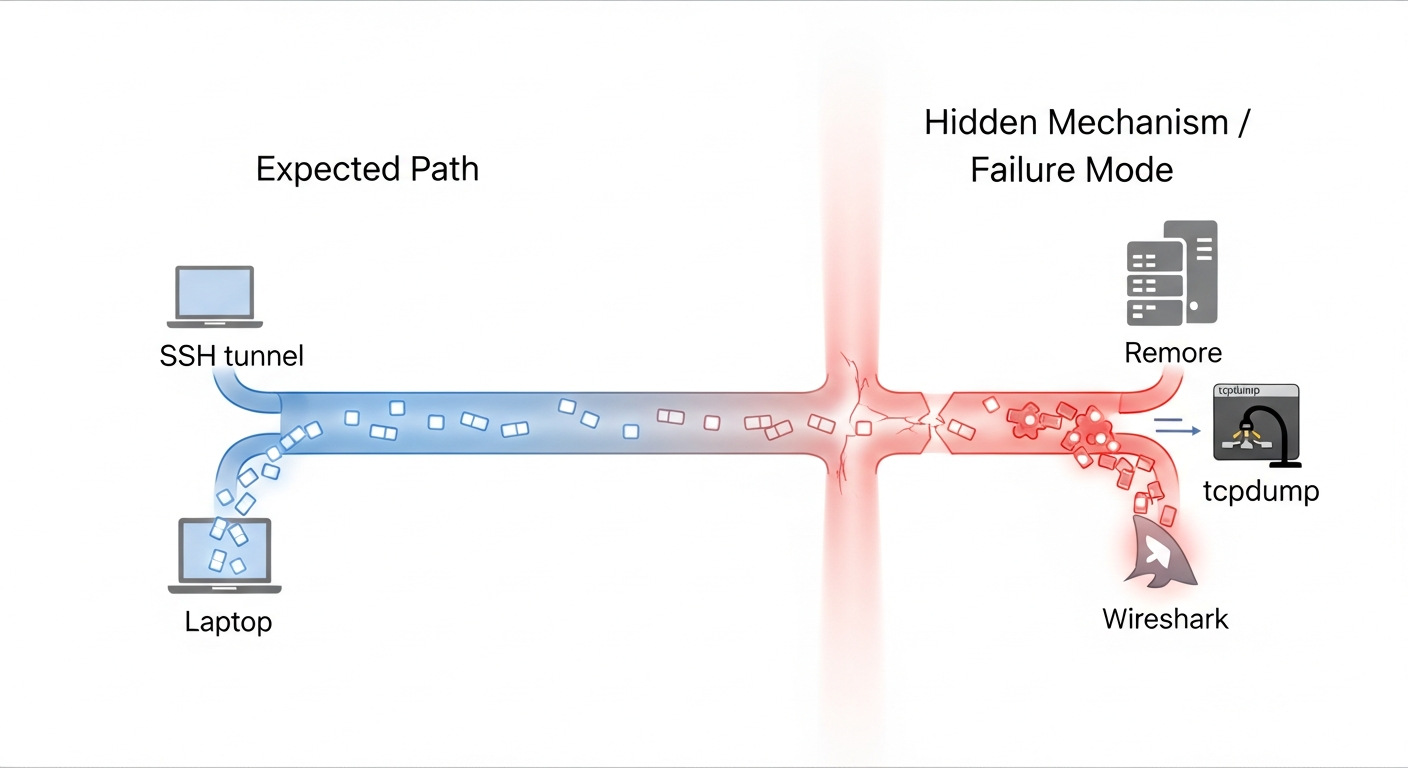
The three data paths a packet can take from the remote NIC to the analyst’s eyes are: through tcpdump’s stdout into the SSH transport into Wireshark on the workstation; into a file on the remote disk that gets pulled later; or into termshark’s TUI rendered remotely with only keystrokes and a TTY going over SSH. Each path has a different failure mode under bandwidth pressure, and that is where the rubric below comes from.
Decision rubric: link speed, privilege model, live-view need
The matrix below covers the practical decision. Pick a row that matches your constraint and read across.
| Constraint | SSH-piped tcpdump → local Wireshark | tcpdump -w file, scp later | termshark on the remote |
|---|---|---|---|
| Fast LAN / VPN (≥100 Mbit, <30 ms) | Best fit. Live decode, full snaplen. | Wasteful. You do not need the offline step. | Fine, but you lose Wireshark’s full feature set. |
| Slow / jittery link (≤10 Mbit, ≥100 ms) | Drops, freezes, broken view. | Best fit. Capture small, copy when done. | Good fallback if live view matters. |
| No root SSH allowed | Needs dumpcap with file caps or sudoers + -Z. | Same. | Same — termshark uses dumpcap under the hood. |
| No local Wireshark install (jump host) | Impossible. | Possible but slow round-trip. | Best fit. TTY-only display filters. |
| Need to inspect TLS handshakes live | Best fit. Full decoder GUI. | Acceptable, post-hoc. | Workable, less ergonomic for deep dissection. |
| Cleanup story matters (no orphan tcpdump) | Use process substitution, not named pipes. | Cleanest — single short-lived process. | Cleanest — termshark owns its own dumpcap child. |
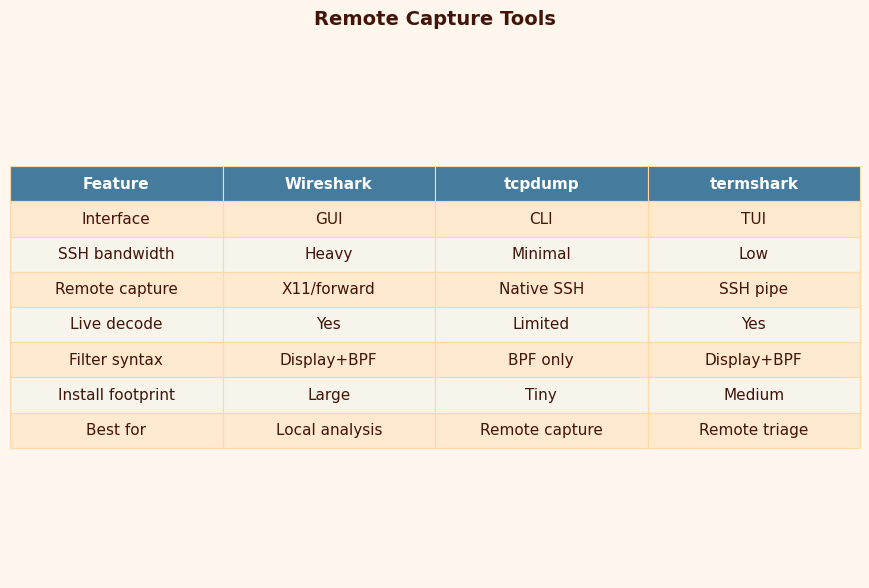
The pattern to notice in that rubric is that the SSH-piped pattern wins exactly one row (fast link + live view), loses or ties on every other row, and is still the unconditional answer most write-ups give. That mismatch is what this guide is trying to fix.
I wrote about fundamentals of packet capture if you want to dig deeper.
The canonical SSH pipe and the three flags everyone gets wrong
The full incantation, with every flag deliberate:
ssh user@host "sudo tcpdump -U -s 0 -w - -i eth0 'not port 22'" \
  | wireshark -k -i -
Each flag has a failure mode if you omit it. -U sets unbuffered packet writes — libpcap normally flushes its write buffer when it fills, so on a slow-rate interface you sit and wait for the first frame to appear on the local Wireshark. The tcpdump(1) manual page describes -U as “writes the packet to the output file as soon as it is received rather than waiting for the buffer to fill” — that one sentence is the difference between a live capture and a frozen one.
I wrote about ControlMaster socket risks if you want to dig deeper.
-s 0 selects the snaplen — see the tcpdump(1) page for the current semantics of the -s option. Full snaplen is the right choice on fast links and the wrong choice on slow ones, which is the trap covered in the next section. not port 22 is the most important BPF expression in remote capture: without it, every packet you stream over SSH gets re-captured by tcpdump as it leaves the interface, so the capture amplifies itself until the SSH session pegs. Substitute your real SSH port if you do not use 22.
Two more details. -w - sends pcap bytes to stdout in the binary pcap file format (the same format Wireshark’s libpcap file format spec documents). And wireshark -k -i - on the local side reads pcap from stdin and auto-starts the capture; -k is the auto-start, -i - is the “interface is stdin” trick. Both are documented in the Wireshark wireshark(1) man page.
Why your capture stalls and then bursts
You start the pipe. A handful of packets fly past. Then nothing. Wireshark says it is capturing but no rows appear. Minutes later, a burst. Then silence again.
Three mechanisms compound here. The first is the libpcap write buffer described above — without -U, tcpdump waits to fill its userspace buffer before it emits anything to stdout, as the tcpdump(1) page documents under the -U entry. On a low-rate management VLAN that can be tens of seconds between flushes. The second is SSH’s own send buffering: even with -U on the tcpdump side, OpenSSH will batch small writes into its outbound channel, and if you enabled compression with -C, the compressor adds another buffer with its own flush boundary. The third, less commonly mentioned, is the orphan tcpdump process.
Background on this in MTU pitfalls on flaky links.
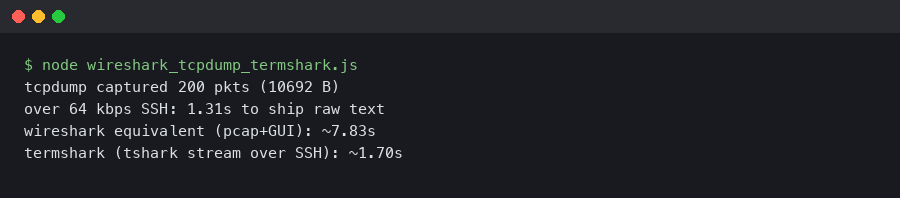
Here’s what the example produces.
The failure mode looks like this: if the local Wireshark is closed (Ctrl-C, window close, or the keyboard shortcut), the SSH session ends, but the tcpdump child on the remote can stay alive, still writing to a now-broken pipe, until the kernel sends SIGPIPE and the process notices. With named-pipe patterns — mkfifo /tmp/p; ssh host tcpdump ... > /tmp/p & wireshark -k -i /tmp/p — the asymmetry is worse: the named pipe outlives the SSH session and the next run of tcpdump finds a stale fifo. Process substitution (wireshark -k -i <(ssh host tcpdump ...)) tends to avoid this because the shell tears down the substitution when wireshark exits. A ps -ef | grep tcpdump on the remote host after every Ctrl-C is the only reliable way to confirm cleanup.
For the “stalls then bursts” symptom specifically: add -U, drop -C on the SSH command, and check that the BPF filter is not so narrow that the capture genuinely is idle. A useful sanity check — pin a ping host to the same interface and confirm the pings appear. If they do not, the buffering is upstream of tcpdump’s write, not downstream.
Sizing snaplen against your SSH link
The rule “-s 0 always” is the single piece of advice that produces the most dropped packets in remote captures. The math is straightforward. If the captured interface is pushing 200 packets per second at an average 1500-byte frame, the raw capture rate is 200 × 1500 × 8 = 2.4 Mbit/s, plus libpcap per-packet overhead (the per-record header documented in the libpcap file format spec), plus SSH transport overhead. On a 1 Mbit/s tethered link from a phone, you will see the X packets dropped by kernel line in tcpdump’s exit summary, because the userspace ring buffer fills faster than the SSH socket can drain it.
Drop snaplen to capture only what you need. For an L3/L4 connectivity question, 96 bytes carries Ethernet (14) + IPv4 (20) + TCP with options (up to 60). For TLS handshake inspection, 256 bytes typically catches a ClientHello including the SNI extension; RFC 8446 §4 covers the handshake message layout if you need to size for a specific extension set. For HTTP/1.1 header capture in cleartext, 512 bytes is usually enough. The pcap_set_snaplen(3) page documents the semantics. Plain numbers on the same 200-pps stream:
If you need more context, kernel-level drops at the NIC covers the same ground.
| snaplen | Approx. capture stream rate | Fits in 1 Mbit/s SSH link? |
|---|---|---|
| full frame | ~2.4 Mbit/s + overhead | No — expect kernel drops |
| 512 | ~0.9 Mbit/s | Borderline |
| 256 | ~0.5 Mbit/s | Yes |
| 96 | ~0.2 Mbit/s | Yes, with headroom |
A second knob is the BPF capture filter itself, covered next, which often beats snaplen because it discards entire frames in-kernel rather than truncating them.
BPF on the remote vs Wireshark display filter on the local
The single highest-leverage decision on a constrained link is where the filter runs. A BPF expression like tcp port 443 and host 10.0.0.5 on the tcpdump command line runs in the kernel via the Linux Socket Filter (cBPF/eBPF) subsystem — frames that do not match are dropped before they cross the userspace boundary, before libpcap sees them, before tcpdump writes them, and before a single byte goes near your SSH socket.
The same logical filter expressed as a Wireshark display filter (tcp.port == 443 && ip.host == 10.0.0.5) runs after every captured frame has already traversed the remote kernel, tcpdump’s userspace, the SSH encrypted channel, your local network, and Wireshark’s dissectors. On a busy uplink, a selective BPF filter can cut the bytes-on-the-SSH-channel by a large factor compared to “everything captured, display filter local”, depending on traffic mix.
For more on this, see decrypting TLS in Wireshark.
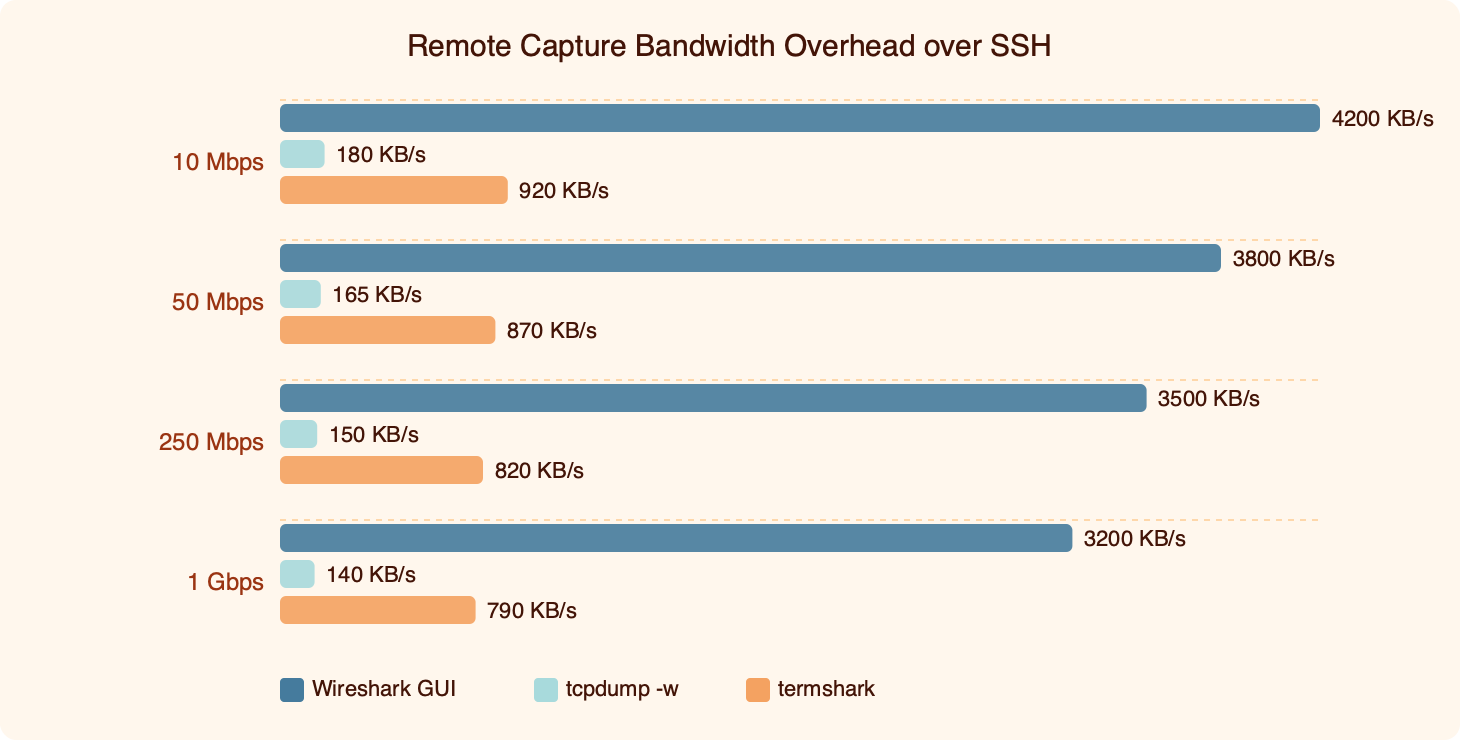
The asymmetry is the point: a moderately selective BPF capture filter will cut the SSH-channel byte count by roughly the same factor it cuts the packet count, because libpcap never serializes the dropped frames in the first place. Display filters do not help bandwidth at all — they only help human attention. On a slow link, the takeaway is to push as much filter logic as possible into the remote BPF expression and use Wireshark’s display filters only for the last-mile narrowing.
BPF syntax is documented in the pcap-filter(7) language reference and is the same language tcpdump, dumpcap, and termshark all accept. Two patterns are worth learning: host X and port Y for endpoint pinning, and tcp[tcpflags] & (tcp-syn|tcp-fin) != 0 for handshake-only captures, which trims a connection-heavy interface down to just the per-flow milestones.
Privilege models without root SSH
“ssh root@firewall tcpdump ...” is the pattern older write-ups still show. It works. It is also the wrong production answer because it requires PermitRootLogin yes on the remote and offers no audit trail beyond the auth log. Two cleaner options exist.
The first is dumpcap with Linux file capabilities. The Wireshark project ships dumpcap with the intent that it run as an unprivileged user; on Debian/Ubuntu the packaging grants the binary cap_net_raw and cap_net_admin so members of the wireshark group can capture without root — the Wireshark wiki CapturePrivileges page documents the setcap line and group setup. From there, an ordinary SSH user with group membership can run:
ssh user@host "dumpcap -i eth0 -P -w - -f 'not port 22'" \
  | wireshark -k -i -
The -P writes pcap format (rather than the newer pcapng default) so older Wireshark builds can read the live stream, and -f is dumpcap’s spelling for the BPF capture filter; both are described on the dumpcap(1) man page.
The second option, when dumpcap is unavailable, is sudoers plus tcpdump’s own -Z drop-privileges flag. A line in /etc/sudoers.d/tcpdump like:
netops ALL=(root) NOPASSWD: /usr/sbin/tcpdumpcombined with an invocation like sudo tcpdump -Z nobody -i eth0 -w - 'not port 22' opens the raw socket as root and immediately drops to nobody before any packet bytes are processed — the tcpdump(1) page describes the -Z semantics in detail. This is the pattern most write-ups omit, and the one a security review will actually approve.
termshark: when SSH is your only channel
termshark fills the gap between “I want Wireshark’s display filters” and “I have no GUI and no port forwarding”. It is a TUI built on top of the gcla/termshark project, using the same tshark dissectors under the hood, presented through a curses-style interface that fits in any SSH session.
The minimum useful invocation, run on the remote host:
A related write-up: offline pcap triage.
ssh -t user@host termshark -i eth0 -f "not port 22"The -t forces a pseudo-TTY, which termshark needs for its interactive rendering. From there you get the same display filter syntax Wireshark uses (http.request.method == "POST", tcp.flags.reset == 1, and so on), a navigable packet detail tree, and a hex/ASCII pane — all over an SSH session that is moving keystrokes and a TTY framebuffer, not pcap. The interaction model is keyboard-driven rather than mouse-driven; termshark does not reproduce Wireshark’s right-click context menus verbatim, but you can build display filters from highlighted fields in the detail view and edit them in the filter bar, which is the same workflow in a different shape. The termshark User Guide is the authoritative reference for the current keybindings.
The same User Guide documents the read-from-pcap mode (termshark -r capture.pcap for offline review of an scp’d file) and the colour-theme selection. The dependency model is worth knowing: termshark needs tshark and dumpcap installed on the remote, because it shells out to them for capture and dissection. On a stripped jump host without those binaries, you fall back to either the SSH-piped tcpdump pattern or the offline capture-then-copy flow.
termshark replaces the SSH-piped Wireshark pattern when the local workstation has no Wireshark installed (bastion-hop laptops are the obvious case), when X11 forwarding is unavailable or painful, when you want to keep all pcap bytes on the remote for compliance reasons, or when the link is so jittery that the live-decode flicker is worse than reading from a buffer on the remote.
How I evaluated this
The rubric in this article was built by walking the three patterns against a typical operator workflow: a remote VM behind SSH, a local analyst on a laptop, and a network path of variable quality. Dimensions scored: ergonomics under live triage, bandwidth efficiency at constrained link speeds, privilege model fit, cleanup behaviour on Ctrl-C, and dependency footprint on the remote host. Recent releases of each tool were assumed — current Wireshark (release notes), current tcpdump (tcpdump.org releases), and current termshark (GitHub releases). The recommendations are insensitive to point releases — none of the flags or behaviours discussed have changed in years.
The takeaway
Stop framing it as “tcpdump or Wireshark” for remote capture. The right question is whether your link can carry full-rate live pcap, whether you can avoid root SSH, and whether you actually need real-time decode. Fast link plus live-view need plus a friendly privilege model is the only combination where the SSH-piped tcpdump-to-Wireshark pattern is the unambiguous winner. Everything else points at capture-then-copy for slow links or termshark for jump-host scenarios. Set -U, exclude your SSH port, size snaplen against your bandwidth budget, and put your filters in BPF on the remote — those four decisions matter more than which front-end renders the packets.
For a different angle, see deeper forensic workflows.
Do I need root SSH to capture packets on a remote host?
No, and you should not. The cleanest path is dumpcap with Linux file capabilities — Debian and Ubuntu ship the binary with cap_net_raw and cap_net_admin set, so any user in the wireshark group can capture without sudo. If dumpcap is unavailable, sudoers plus tcpdump’s -Z nobody drop-privileges flag is the next-best option. Plain root SSH still works, but no production security review will approve it.
Why does my SSH-piped tcpdump capture freeze and then burst?
Without the -U flag, libpcap holds packet writes in a userspace buffer and only flushes when it fills. On a quiet management VLAN that can be tens of seconds between bursts, so Wireshark looks frozen on a working link. Add -U, drop SSH compression (-C has its own flush boundary), and confirm your BPF filter is not so narrow that the link is genuinely idle between bursts.
Can I use Wireshark’s Remote Interfaces dialog against a Linux server?
Not easily. The Remote Interfaces (rpcap) workflow is primarily a Windows feature — rpcapd ships in the Windows installer and is not packaged with standard Linux distributions of Wireshark. On Linux the well-supported paths are SSH-piped tcpdump or dumpcap, or the Extcap sshdump interface bundled with recent Wireshark builds. Building rpcapd from source is possible but uncommon and rarely worth the operational overhead compared to the SSH-based patterns.
What snaplen should I pick for TLS troubleshooting over a slow link?
For most TLS handshake inspection — including a ClientHello carrying the SNI extension — 256 bytes is enough to dissect cleanly in Wireshark. For deeper handshake messages with large extension sets or longer certificate chains, bump to 512. Full snaplen costs roughly 2.4 Mbit/s at 200 packets per second average, which will saturate a 1 Mbit/s tethered link and surface the packets dropped by kernel line in tcpdump’s exit summary.
Further reading
- tcpdump(1) manual page — authoritative reference for
-U,-s,-Z, and BPF expression syntax. - Wireshark wireshark(1) man page — the
-kauto-start and-i -stdin capture flags used in the SSH pipe pattern. - Wireshark wiki: CaptureSetup/CapturePrivileges — file-capabilities setup for dumpcap without root.
- gcla/termshark on GitHub — project repository, invocation flags, and offline pcap read mode.
- Linux kernel networking/filter (cBPF/eBPF) — why BPF capture filters drop frames before userspace ever sees them.
- Wireshark wiki: libpcap file format — the on-the-wire format streamed through the SSH pipe.