
In the intricate world of computer networking, where data packets traverse complex architectures at the speed of light, the ability to diagnose, manage, and secure network traffic is paramount. While graphical user interfaces offer a simplified view, the true power lies in the command line. Network commands are the foundational tools for any System Administrator, Network Engineer, DevOps professional, or security analyst. They provide unfiltered, real-time insights into the health and performance of a network, enabling rapid troubleshooting and precise configuration. From a simple connectivity check to sophisticated packet analysis and automation, mastering these commands is a non-negotiable skill.
These utilities are a double-edged sword; in the right hands, they are indispensable for maintaining robust Network Architecture. However, in the hands of a malicious actor, they can be used to map out networks, identify vulnerabilities, and execute attacks. Understanding their full capability is therefore crucial not just for operational efficiency but for bolstering Network Security. This article provides a comprehensive deep dive into the world of network commands, covering essential diagnostic tools, advanced inspection techniques, and modern automation practices that define today’s Cloud Networking and DevOps environments.
The Foundations: Essential Network Commands for Diagnostics
Before diving into complex configurations or automation, every IT professional must master the fundamental commands for network diagnostics. These tools operate primarily at the lower layers of the OSI Model, such as the Network Layer and Transport Layer, helping you answer the most basic yet critical questions: “Can I reach the destination?” and “What path is my data taking?”
Connectivity and Reachability: ping and traceroute
The ping command is the first tool reached for in any Network Troubleshooting scenario. It works by sending ICMP (Internet Control Message Protocol) “echo request” packets to a target host and waiting for an “echo reply.” The output reveals two key metrics: Latency (the round-trip time) and packet loss. High latency can indicate network congestion or distance, while packet loss points to more serious issues like faulty Network Devices or misconfigured Firewalls.
# Pinging a Google server with a count of 4 packets
ping -c 4 google.com

PING google.com (142.250.191.174) 56(84) bytes of data.
64 bytes from lhr48s26-in-f14.1e100.net (142.250.191.174): icmp_seq=1 ttl=115 time=15.4 ms
64 bytes from lhr48s26-in-f14.1e100.net (142.250.191.174): icmp_seq=2 ttl=115 time=15.1 ms
64 bytes from lhr48s26-in-f14.1e100.net (142.250.191.174): icmp_seq=3 ttl=115 time=15.8 ms
64 bytes from lhr48s26-in-f14.1e100.net (142.250.191.174): icmp_seq=4 ttl=115 time=15.5 ms

--- google.com ping statistics ---
4 packets transmitted, 4 received, 0% packet loss, time 3005ms
rtt min/avg/max/mdev = 15.118/15.452/15.808/0.245 ms
While ping tells you if you can reach a destination, traceroute (or tracert on Windows) shows you the path. It maps the journey of your packets hop-by-hop across Routers from your machine to the target. This is invaluable for identifying where a connection is failing or where high latency is being introduced along the path, providing a clear view of the Routing logic in action.
DNS and Name Resolution: nslookup and dig
Humans use domain names, but networks use IP addresses. The Domain Name System (DNS Protocol) is the phonebook of the internet that translates one to the other. When you can’t reach a website by its name but can by its IP address, DNS is almost always the culprit. The nslookup command is a standard tool for querying DNS servers to perform this translation. A more powerful and flexible alternative favored by Network Engineers is dig (Domain Information Groper), which provides more detailed output.
# Using dig to find the A record (IPv4 address) for github.com
dig github.com A

; <<>> DiG 9.16.1-Ubuntu <<>> github.com A
;; global options: +cmd
;; Got answer:
;; ->>HEADER<<- opcode: QUERY, status: NOERROR, id: 59379
;; flags: qr rd ra; QUERY: 1, ANSWER: 1, AUTHORITY: 0, ADDITIONAL: 1

;; OPT PSEUDOSECTION:
; EDNS: version: 0, flags:; udp: 65494
;; QUESTION SECTION:
;github.com.			IN	A

;; ANSWER SECTION:
github.com.		60	IN	A	140.82.121.4

;; Query time: 21 msec
;; SERVER: 127.0.0.53#53(127.0.0.53)
;; WHEN: Tue Nov 21 10:30:00 UTC 2023
;; MSG SIZE  rcvd: 55
Inspecting Local Configurations and Active Connections
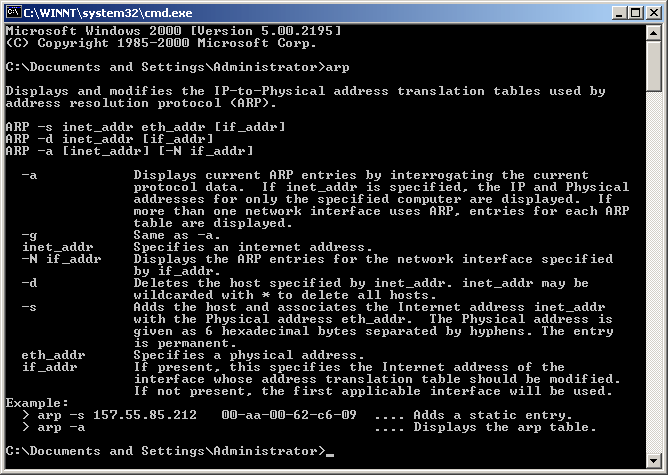
Effective Network Troubleshooting often begins at home—on your local machine. Understanding your device’s own Network Addressing, interfaces, and active connections is critical before you start blaming the wider network. These commands help you inspect the state of your system’s TCP/IP stack.
Viewing Network Interfaces: ip and ifconfig
A network interface is the point of connection between a computer and a private or public network. The ifconfig command has long been the standard for viewing and configuring these interfaces. However, it is now considered deprecated on modern Linux systems in favor of the more powerful and versatile ip command. Using ip addr show provides a detailed summary of all network interfaces, including their IPv4 and IPv6 addresses, MAC addresses, and operational state. This is fundamental for verifying correct Network Addressing and Subnetting.
Analyzing Active Connections: netstat and ss
To secure and troubleshoot a system, you must know which network services are running and what connections are active. The netstat command displays network connections, routing tables, and interface statistics. It can show you which ports are listening for incoming connections and which remote hosts are currently connected. Its modern replacement on Linux is ss (socket statistics), which is significantly faster and provides more detailed information from the kernel’s TCP/IP subsystem. Running ss -tulpn is a common practice for System Administration to get a quick snapshot of all listening TCP and UDP ports and the processes that own them.
# Show all listening TCP (-t) and UDP (-u) ports (-l) without resolving names (-n) and show the process (-p)
# This is extremely useful for checking if a service like a web server or database is running correctly.
sudo ss -tulpn

State      Recv-Q     Send-Q          Local Address:Port           Peer Address:Port     Process
LISTEN     0          4096            127.0.0.53%lo:53                  0.0.0.0:*         users:(("systemd-resolve",pid=593,fd=13))
LISTEN     0          128                 0.0.0.0:22                  0.0.0.0:*         users:(("sshd",pid=762,fd=3))
LISTEN     0          511                 0.0.0.0:80                  0.0.0.0:*         users:(("nginx",pid=1024,fd=6))
LISTEN     0          128                    [::]:22                     [::]:*         users:(("sshd",pid=762,fd=4))
Beyond the Basics: Advanced Techniques and Network Automation
While manual commands are great for immediate diagnostics, modern Network Management relies heavily on automation and deeper analysis. This is where scripting and advanced tools come into play, enabling everything from continuous Network Monitoring to programmatic infrastructure changes, a cornerstone of DevOps Networking and Software-Defined Networking (SDN).
Packet Analysis with tcpdump
When you need to see the raw data flowing across your network, tcpdump is the tool of choice. It is a powerful command-line packet analyzer that allows you to capture and inspect network traffic in real-time. While GUI tools like Wireshark offer a more user-friendly experience for Packet Analysis, tcpdump is ideal for use on remote servers or within scripts. You can filter traffic by host, port, protocol, and more, making it an indispensable tool for deep-dive troubleshooting of complex application issues or for security investigations.
Scripting Network Commands with Python
The true power of command-line tools is unlocked when they are integrated into scripts. Network Automation reduces manual effort, minimizes human error, and enables proactive monitoring. Python, with its extensive Network Libraries and simple syntax, is a popular choice. The subprocess module allows you to execute any shell command and process its output directly within your code. This enables you to build custom health checks, automate configuration backups, or create alerting systems based on network conditions.
import subprocess
import platform

def check_host_availability(hostname):
    """
    Pings a host to check if it is online.
    Compatible with both Windows and Linux/macOS.
    """
    # Determine the correct ping parameter for count based on OS
    param = '-n' if platform.system().lower() == 'windows' else '-c'

    # Build the command
    command = ['ping', param, '1', hostname]

    try:
        # Execute the command, hiding output
        subprocess.check_call(command, stdout=subprocess.DEVNULL, stderr=subprocess.DEVNULL)
        print(f"✅ Host {hostname} is reachable.")
        return True
    except subprocess.CalledProcessError:
        print(f"❌ Host {hostname} is unreachable.")
        return False

# Example usage
servers_to_check = ["google.com", "192.168.1.254", "nonexistent-domain123.com"]
for server in servers_to_check:
    check_host_availability(server)
Interacting with Network APIs
In the era of Cloud Networking and SDN, many Network Devices and services are managed via Network APIs, typically REST APIs. The command-line tool curl is the universal client for interacting with these endpoints. Instead of logging into a device’s CLI, a Network Engineer can use curl to send an HTTP request to an API to retrieve status, update a firewall rule, or reconfigure a Load Balancer. This API-driven approach is fundamental to modern Network Automation and infrastructure-as-code (IaC) practices.
Best Practices and Security in a Connected World
Using network commands effectively and safely requires an awareness of best practices and security implications. These tools are powerful, and their misuse, whether intentional or accidental, can have significant consequences.
The Principle of Least Privilege
Many network commands, especially those that capture packets (tcpdump) or inspect running processes (ss -p), require elevated root or administrator privileges. Always follow the principle of least privilege: only use elevated permissions when absolutely necessary. Running commands as a standard user whenever possible reduces the potential impact of a mistake or a malicious script.
Securing Command Execution

The very commands we use to manage networks can be exploited by attackers. If an attacker gains access to a server, they will use these same tools (`ping`, `netstat`, `nslookup`) for reconnaissance to map your internal Network Architecture. It is critical to secure access to systems through strong passwords, multi-factor authentication, and properly configured VPNs and Firewalls. Furthermore, if you are building scripts or web applications that execute network commands based on user input, you must rigorously sanitize that input to prevent command injection attacks.
Context is Key: For the Remote Professional
For the growing population of Digital Nomads and Remote Work professionals, these commands are more relevant than ever. When your home or co-working space WiFi is slow, ping can help you determine if the problem is your local connection or the wider internet. When your VPN fails to connect, traceroute can show you where the connection is dropping. Understanding these tools empowers you to diagnose your own connectivity issues, ensuring stable Network Performance for video calls and critical work, no matter where you are in the world.
Conclusion: From Commands to Mastery
Network commands are the bedrock of effective network management. We’ve journeyed from the fundamental diagnostic utilities like ping and traceroute to the advanced inspection capabilities of ss and tcpdump, and finally into the modern world of Network Automation with Python and REST APIs. These tools are not just relics of a bygone era; they are more critical than ever, providing the granular control and scriptable interface required by today’s complex, software-defined infrastructures.
Mastering these commands is an ongoing process. The next step in your journey is to practice them in a safe environment, such as a virtual machine or a personal lab. Explore the extensive options and flags available for each command by reading their `man` pages. Begin scripting simple health checks and graduate to interacting with Network APIs. By building this deep, command-line expertise, you will not only become a more effective troubleshooter but also position yourself at the forefront of modern Network Administration and engineering.